How to Speed Up Your PC: RAM, Graphics Cards and GTA 6
A practical Windows guide from WindsorCastle.info — with advice for everyday browsing, hardware upgrades and gaming.
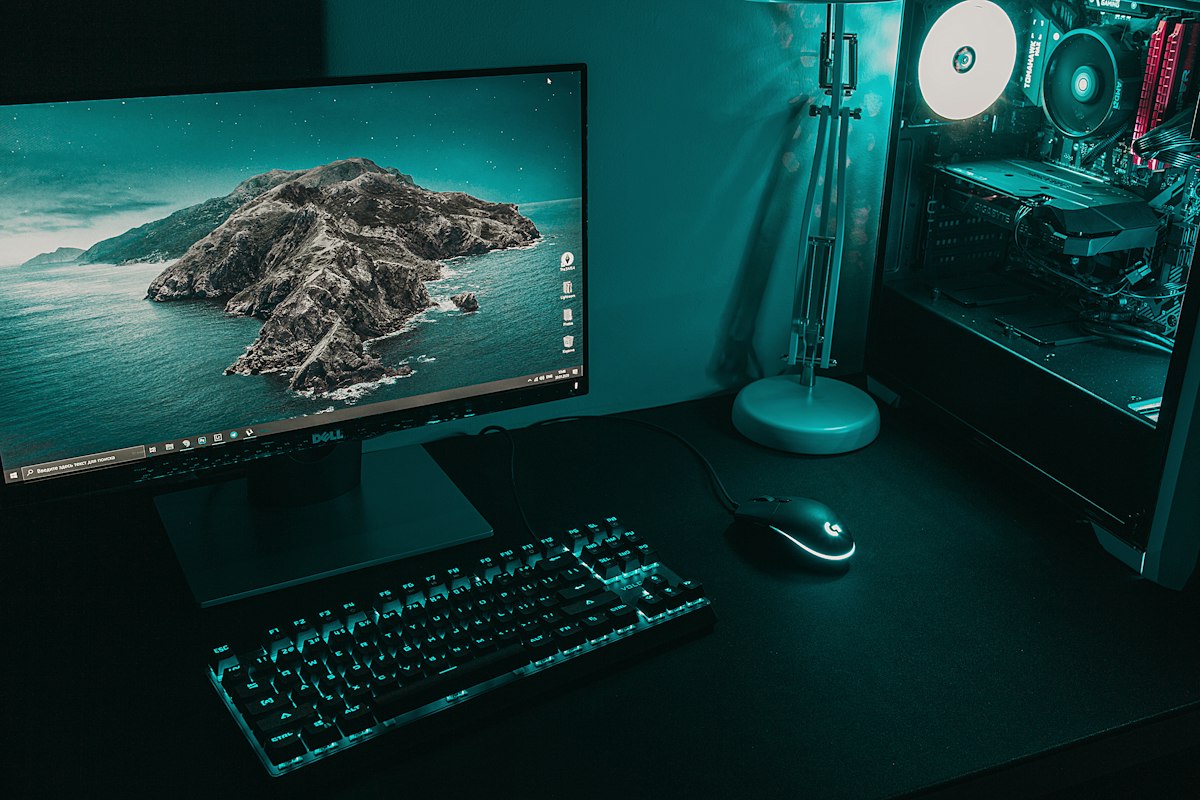 Click the picture for its description
Photo by Daniel Eliashevskyi via Unsplash.
Introduction: give your computer a new lease of life
A slow computer can be frustrating, particularly when web pages take ages to load, videos buffer, programmes freeze or games struggle to run smoothly. Before spending money on a new PC, find out what is causing the slowdown.
Some improvements are free: remove unnecessary startup apps, check background tasks and update Windows. Others involve upgrading RAM, replacing an old mechanical hard drive with an SSD, improving the network connection or installing a more capable graphics card.
“Adding more RAM to your computer won’t make it run faster if you already have enough.”
The key is to identify the bottleneck. More RAM does not automatically make broadband faster, and a powerful graphics card will not necessarily make ordinary websites load more quickly.
1. What makes a PC slow?
- RAM (working memory): holds the apps and data you are actively using. Too little can cause pauses and excessive use of virtual memory.
- SSD or hard drive: stores Windows, applications and files. An SSD can greatly reduce boot and loading times compared with an older mechanical hard drive.
- Processor (CPU): handles instructions and general computing work. An older or overloaded processor can limit performance.
- Graphics card (GPU): draws images, lighting, effects and 3D scenes. It is especially important for games.
- Internet connection: broadband speed, Wi-Fi quality, router, Ethernet, DNS and network drivers affect online performance.
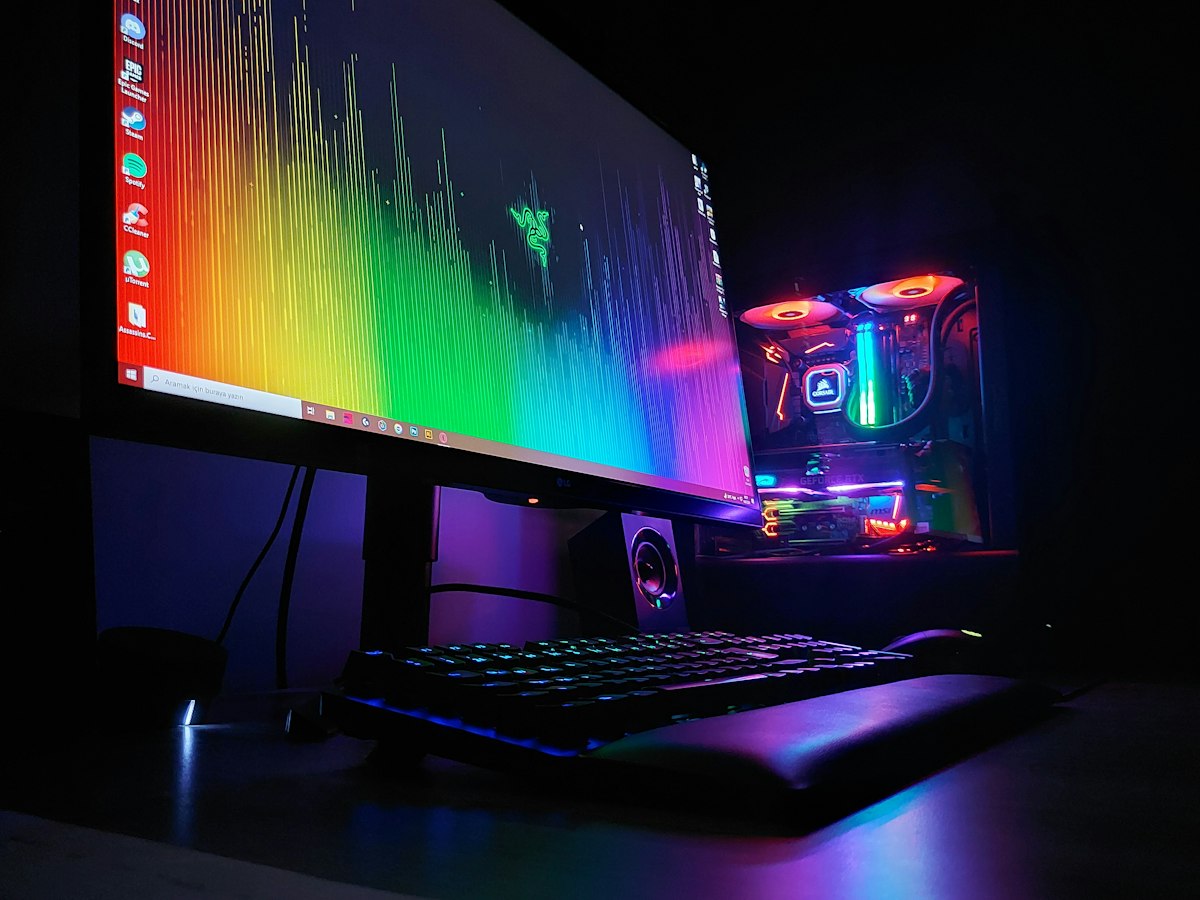 Click the picture for its description
Photo by Resul Kaya via Unsplash.
2. Is 16 GB of RAM enough, or should you choose 32 GB?
RAM stands for random-access memory. It is temporary working space used while Windows and your applications are running; it is not the same as permanent storage on an SSD or hard drive.
| RAM capacity | Best suited to |
|---|---|
| 8 GB | Basic browsing and office tasks; can feel restricted with many tabs or demanding applications. |
| 16 GB | A good everyday baseline for browsing, streaming, office work and many games. |
| 32 GB | Demanding games, heavy multitasking, video editing, large projects and virtual machines. |
Doubling RAM does not double computer speed. If your PC already has enough memory for your usual tasks, moving from 16 GB to 32 GB may make little difference to everyday browsing. If memory is nearly full and Windows is frequently moving data to storage, more RAM can make the computer noticeably more responsive.
Recommendation: 16 GB is a sensible target for general home use. For a new gaming PC or demanding multitasking, 32 GB is a good choice if your budget allows. Check the motherboard or laptop manual before buying: the supported memory type, capacity, speed and slots must match.
3. Would 16 GB or 32 GB make the internet faster?
Usually, no. RAM does not increase the speed supplied by your broadband provider. If your internet plan delivers 100 Mbps, adding memory will not turn that connection into 500 Mbps.
More RAM can make browsing feel faster when the computer is short of memory—for example, when dozens of tabs and other apps are open and pages keep freezing or reloading. But if the connection itself is slow, the cause is more likely to be the broadband service, Wi-Fi signal, router, network adapter, DNS settings or a particular website.
- Try Ethernet: connect the PC directly to the router to test whether Wi-Fi is the problem.
- Check actual speed: run a reputable broadband speed test and compare the result with another device on the same connection.
- Check Windows: inspect Task Manager, update the network adapter driver from the PC or adapter manufacturer's official site, and review proxy or DNS settings.
- Do not buy RAM to fix a network fault: diagnose the connection first.
4. Free ways to speed up Windows
- Check Task Manager. Press Ctrl + Shift + Esc. Look at CPU, Memory and Disk usage while the PC is slow. Memory consistently near 100% may point to a RAM shortage; a busy disk may indicate a storage issue or background process.
- Reduce startup apps. In Task Manager, open Startup apps and disable programmes you do not need to launch automatically. Keep security tools and essential device utilities enabled.
- Free storage space. Open Settings → System → Storage and use Windows' built-in cleanup tools. Leave enough free space for updates and applications.
- Update and scan. Install suitable Windows and manufacturer driver updates, then run a Windows Security scan.
- Consider an SSD. If Windows is on an old mechanical hard drive, a compatible SSD is often one of the most noticeable upgrades for startup and application loading.
Avoid dubious “one-click PC booster” utilities and registry cleaners. They may offer little benefit and can disable useful services or make unwanted changes.
5. Graphics cards: what should you choose?
A graphics card (GPU) renders a game's world, including textures, shadows, reflections, lighting and effects. Integrated graphics are suitable for everyday work and lighter games, while a dedicated graphics card is usually better for demanding modern games.
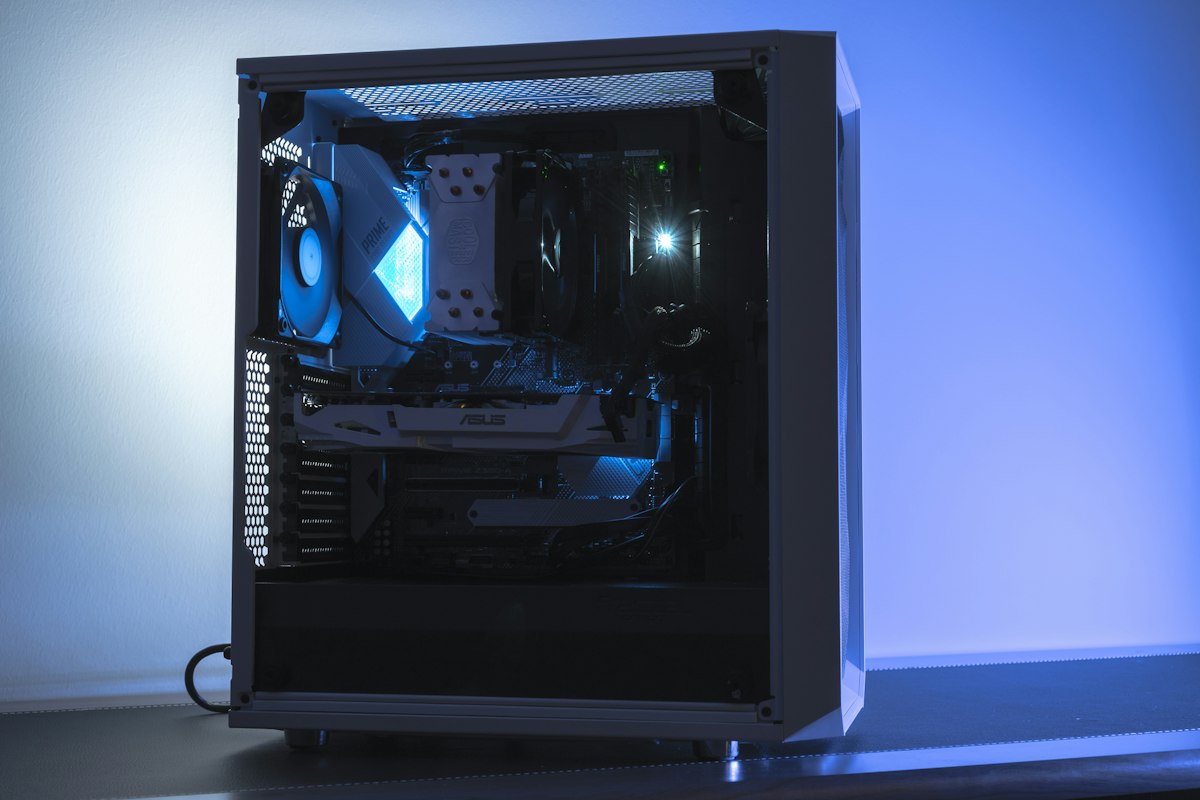 Click the picture for its description
Photo by Anthony Roberts via Unsplash.
As a general buying guide, 8 GB of video memory (VRAM) can suit many games at moderate settings; 12 GB can be a sensible target for a new mid-range gaming PC; and 16 GB or more can provide extra headroom for demanding games, high resolutions and large textures. These are broad guidelines, not a guarantee of performance: GPU power, memory bandwidth, cooling, resolution and game optimisation also matter.
6. Grand Theft Auto VI: is it available for PC?
As of , Rockstar's official platform information lists Grand Theft Auto VI for PlayStation 5 and Xbox Series X|S. Rockstar has not announced an official PC version, PC release date or PC system requirements in the official sources linked below. Do not treat unofficial hardware lists or guessed release dates as confirmed information.
Official information: Rockstar Games — Grand Theft Auto VI and Rockstar Support — platforms, editions and versions.
What PC hardware should you aim for?
The following is a general target for a modern, demanding gaming PC, not an official GTA VI requirement:
- Processor: a modern 8-core gaming CPU.
- System RAM: 32 GB DDR5, assuming the chosen platform supports DDR5.
- Graphics: a modern dedicated GPU; aiming for 16 GB of VRAM offers headroom, but does not guarantee compatibility or performance.
- Storage: a 1–2 TB NVMe SSD for Windows and large games; GTA VI's PC storage requirement has not been announced.
As a rough UK budgeting guide, a new desktop with modern gaming components can cost around £900–£1,800 or more, depending on the graphics card, processor, storage, case, cooling and whether it is prebuilt. This is only an illustrative hardware budget—not the price of a PC edition of GTA VI. If you are buying specifically for this game, wait for official PC specifications before committing to an expensive upgrade.
7. How to check your existing PC
- Processor and RAM: press Windows + R, enter
msinfo32, then press Enter. Look for Processor and Installed Physical Memory (RAM). - Graphics: press Windows + R, enter
dxdiag, then inspect the Display tab. - Drive type: open Task Manager → Performance → Disk. Windows may identify the drive as SSD or HDD.
Our verdict: which upgrade should come first?
- If Windows and programmes take ages to open, investigate an SSD upgrade first—especially if you have an old mechanical drive.
- If the PC freezes with many tabs open, check memory usage. Moving from 8 GB to 16 GB, or from 16 GB to 32 GB when needed, can help.
- If the internet is slow, test broadband, Wi-Fi and network configuration before buying RAM.
- If games run poorly, examine the graphics card, processor, cooling and memory use. A GPU upgrade may help more than extra system RAM.
- If planning a new gaming PC, 32 GB RAM is a sensible general target, but wait for official GTA VI PC requirements before buying components specifically for that title.
The bottom line: 16 GB is enough for many everyday PCs; 32 GB is a strong target for demanding multitasking and gaming. Neither amount directly increases your broadband speed. The best upgrade is the one that fixes the actual bottleneck.
Sources and further reading
- Digital Trends — How much RAM do you need? (background on RAM capacity and gaming).
- HP UK — How much RAM do I need? (general memory guidance).
- Rockstar Games — official GTA VI website.
- Rockstar Support — GTA VI platforms and editions.
- Unsplash — image source; photographer credits appear beneath each photograph.
Editorial note: Hardware recommendations are general guidance. Check compatibility and official game requirements before buying components.